
AI in everyday life and work
Listen instead (audio briefing)
The smart features already in your phone, inbox and office tools, and how to use them well.
Already in your pocket
Your phone uses AI to sort photos, transcribe voice notes, translate signs, suggest replies and filter spam calls. Maps predict traffic; banking apps flag unusual payments. You don’t need a new app to start: try the AI features in the tools you already have.
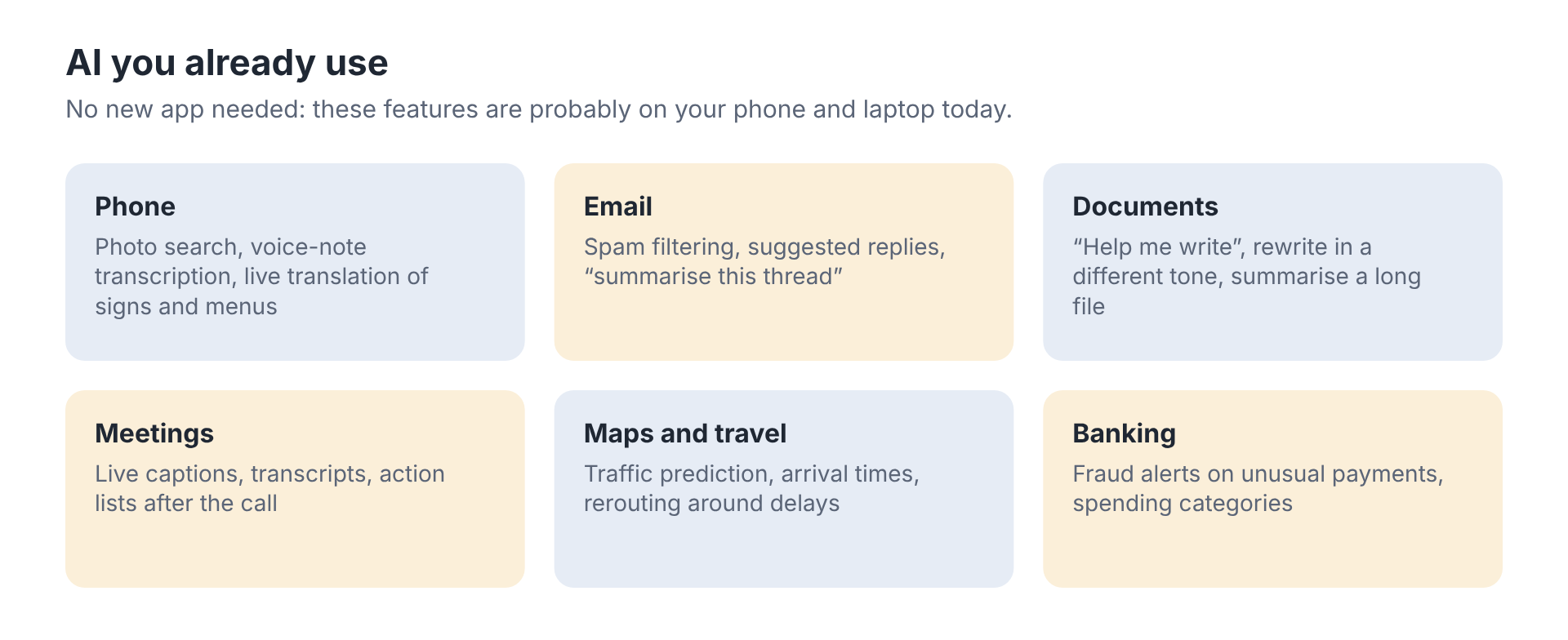
Look for buttons labelled Copilot, Gemini, “summarise”, “rewrite” or “help me write”.
Life admin and work admin
AI can draft a complaint to a supplier, compare two quotes, plan a week of meals around a budget, explain a confusing letter, or turn a long policy into five bullets. The pattern is the same at home and at work: you give it the material and the goal, it gives you a first draft.
Keep personal details such as ID numbers, bank details and medical information out of tools you haven’t checked.
Worked example: “help me write”
Sipho needed to reply to a neighbour’s complaint about a car blocking the shared driveway, without starting a feud.
Worked example: A tricky message, using the built-in writing help
Before: Prompt
(Typed into “help me write”) reply to neighbour about car
What came back
Dear Neighbour, Thank you for reaching out regarding the vehicle. I apologise for any inconvenience caused and will ensure it does not happen again. Kind regards.
Stiff, and it promises something he can’t control.
After: Prompt
Reply to my neighbour, Mrs Daniels, who complained that a car blocked our shared driveway on Saturday. It was my visitor’s car, for about an hour. I want to apologise, explain briefly, and suggest visitors park on the street from now on. Friendly, short, like a WhatsApp between neighbours.
What came back
Hi Mrs Daniels, sorry about Saturday! That was my visitor’s car; I didn’t realise it was blocking you for so long. From now on I’ll ask visitors to park on the street. Thanks for letting me know, and sorry again.
Warm, honest and ready to send.
The built-in button works much better when you give it the facts and the tone.
Smart habits
Ask for a draft, not a decision. Read before you send. Prefer tools from companies you trust, and check privacy settings once: many tools let you switch off using your conversations for training.
If something feels off, such as an urgent request for money or a voice that sounds almost right, stop and verify another way. Module 5 covers fakes and scams.
Key points
- AI is already in your phone, inbox and office tools.
- Give material and a goal; get a first draft.
- Keep ID, bank and medical details out.
- Drafts, not decisions; verify anything urgent.
Common questions
Which AI app should I download?
Start with features in tools you already use. If you add one assistant, choose a well-known provider and check its privacy settings.
Are smart speakers listening all the time?
They listen for a wake word. Review the settings and recordings in the app, and switch off what you don’t want.
Exercise: Use three AI features you already have
Your version: pick the line for your area of work
- Operations: a reply to a supplier asking for an update
- Finance: a short note explaining an invoice query
- Sales and marketing: a product description
- HR and people: a welcome message for a new employee
- Customer service: a polite reply to an unhappy customer
- Admin and coordination: scheduling a meeting with five people
- Training, L&D or skills development: a reminder to learners about an upcoming session
- Business owner or founder: a message to a customer about a late order
- Project or programme management: a meeting summary with actions
- Executive team: a short note to your team about priorities
- Other (any role): an email you need to send this week
Twenty minutes, using your own phone and work tools. No new apps.
Step 1: Find the buttons
Open your email and a document. Look for Copilot, Gemini, “summarise”, “rewrite” or “help me write”. Note where they are.
Step 2: Use one on a real task
Use a writing feature for your task (see “Your version” above). Give it the facts and the tone, as in the worked example.
Prompt to copy:
[What you need written]. Facts: [the key facts]. Reader: [who]. Tone: [friendly / firm / formal]. Keep it under [length].
Step 3: Use your phone
Transcribe a voice note, or point the camera at a sign or label in another language and translate it.
Step 4: Check one privacy setting
In your main AI tool, find the setting that controls whether your conversations are used for training. Decide whether to switch it off.
- ☐ You know where the setting is
- ☐ You’ve made a decision about it
Hand in: Note the three features you used and what you decided about the privacy setting.
You’re done when: You’ve used three AI features you already had, and checked one privacy setting.